Facecard Roblox Sculpt: Unlock Tasks, Sliders and Presets
Facecard Roblox Sculpt: see the join-group and like-game tasks shown in a player video, plus reported sliders, resets and saved presets and their limits.
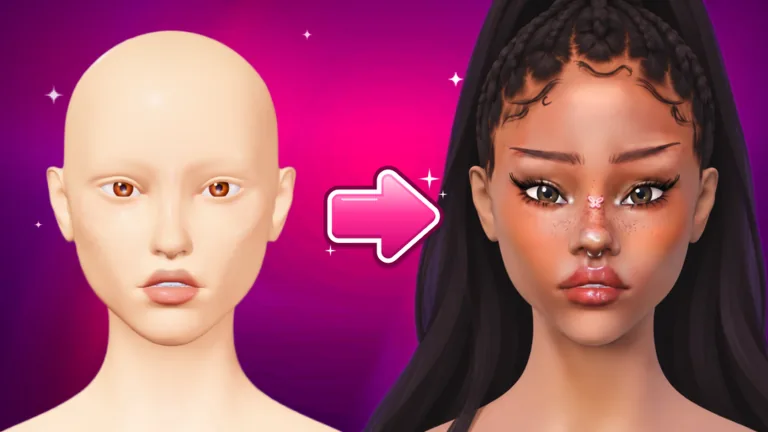
What Facecard Roblox Sculpt Does
The SCULPT tab reshapes the face itself: eyes, nose, lips, cheeks and jaw. Makeup stays exactly where you painted it, however much you reshape. The tab sits next to MAKEUP and STYLE on the left panel.
This Facecard Roblox Sculpt guide combines a reviewed player video with slider, reset and preset instructions from a player-run Help Center. Its operator and developer affiliation remain unconfirmed. The two unlock task labels are visible in the recording; successful activation and rejoining have not been independently verified. For paint tools, see the Facecard Roblox makeup tutorial, and for round flow, the Facecard Roblox guide.
Facecard Roblox Sculpt: Two Tasks Shown in the Video
The VendoPlus recording at 0:36 shows the Sculpt tab with an unlock panel. Item 1 is JOIN THE GROUP, with a JOIN GROUP button; item 2 is LIKE THE GAME. These labels have now been read from the gameplay image, not inferred from the video title. The numbered list identifies the two tasks, but does not prove an enforced completion order.
Open SCULPT beside MAKEUP and STYLE and compare your current prompt with the recorded one. Use its group button to reach the requested group, and give the experience a thumbs-up through the game's own prompt or Roblox page. Do not substitute a like on the YouTube video. Return to the game and check the task statuses; a partially complete status is not proof of an unlock.
| Task or follow-up | What the evidence establishes |
|---|---|
| Join the group requested by the Sculpt panel | First numbered task and JOIN GROUP button visible at 0:36 |
| Like the Roblox experience | Second numbered task visible at 0:36; not a request to like the tutorial video |
| Check whether both tasks are complete | At 0:48, the group task is still marked TO DO and the like task ALMOST; successful activation is not shown in the reviewed frames |
| Rejoin after completing the tasks | The saved player-run Help Center instructs this; this review does not verify that it is required or sufficient |
These frames were inspected on October 18, 2026. Playback failed around 1:00 of the 1:18 recording, so the ending was not verified. We did not join a group, like the game or complete an unlock ourselves. If your current prompt differs, follow it rather than treating this recording as a guarantee of today's requirements. The Help Center also claims the sliders remain unlocked afterwards, but that persistence has not been tested.
Facecard Roblox Sculpt Sliders and Reset
Choose a part of the face, then drag its sliders. The middle of a slider is the face as it comes.
| Control | What it does |
|---|---|
| Slider | Reshapes the chosen face part. The middle is the default |
| RESET | Each slider has its own RESET |
| RESET FACE | Puts everything back. It asks for a second tap |
Sculpt changes are not part of Undo, so use the reset buttons instead.
Save Face Presets With Facecard Roblox Sculpt
Open PRESETS, press SAVE FACE, then tap a slot. Tap a saved slot to load it. NAME lets you give a preset a name, and the X empties a slot (second tap to confirm). VIP players get extra preset slots.
| Preset action | How |
|---|---|
| Save | PRESETS, SAVE FACE, then tap a slot |
| Load | Tap a saved slot |
| Rename | NAME |
| Empty a slot | X, then a second tap |
Facecard Roblox Sculpt Between Rounds
According to the player-run Help Center, each round starts on the standard face so everyone begins equal. Loading a preset restores your saved shape. Your chosen head base stays selected; see Facecard Roblox head bases. Saved looks keep the face shape too, as explained in the Facecard Roblox Lookbook guide.
Facecard Roblox Sculpt FAQ
How do I unlock Facecard Roblox Sculpt?
The reviewed video prompt lists joining the requested group and liking the Roblox experience. Open SCULPT and use the current in-game controls for those tasks. The reviewed frames do not show both tasks completed or the sliders successfully unlocked, so this is evidence of the task labels, not a tested activation walkthrough.
Do I need to rejoin after the Facecard Roblox Sculpt tasks?
The saved player-run Help Center says to rejoin after completing them. The reviewed video frames do not verify a rejoin or successful activation, and we have not tested this in the game. We cannot confirm that rejoining is mandatory or that it alone resolves an incomplete task.
Can I undo Sculpt changes in Facecard Roblox?
No. Sculpt changes are not part of Undo. Use RESET for one slider or RESET FACE for everything.
Does my Sculpt face carry over to the next Facecard Roblox round?
No. Every round starts on the standard face. Load a saved preset to get your shape back in one tap.
Sources for Facecard Roblox Sculpt: VendoPlus gameplay at 0:36 and 0:48 for the visible task panel; Sculpt, a player-run Help Center, for the reported rejoin, slider and preset behavior. The Help Center's operator and developer affiliation remain unconfirmed. This is a fan-made wiki and is not affiliated with Roblox or the developers.
Related Guides
Facecard Roblox Guide: How Rounds, DONE and Voting Work
Facecard Roblox guide for new players: how each round works, what the DONE button does, how looks are ranked and what to do when you join a round late.
Facecard Roblox Head Bases: Classic, Aniya, Mina and Style
Facecard Roblox head bases explained: the three free faces, the STYLE tab, eyes, hair, lashes, piercings, rhinestones, poses and setting sprays at once.
Facecard Roblox Lookbook: Save Looks, Freeplay, Photo Studio
Facecard Roblox Lookbook guide: how to save, load and update looks, what Freeplay and the Photo Studio do, and how to enter Facecard of the Week today.
Facecard Roblox Makeup Tutorial: Brushes, Layers and Colours
Facecard Roblox makeup tutorial: how Size, Strength and Softness work, what Mirror and layers do, and how stamps, colours, skin tone and the camera behave.